
What are sound alerts?
Sound alerts are sounds, memes, videos, and other playful reactions triggered by viewers or community events. StreamerHub, Sound Alerts, and Blerp can play this content through a personal browser source in OBS.
The alert source runs in OBS on your production PC. That makes it independent of whether the mobile video stream reaches the relay over RTMP, SRT, or SRTLA.
In this guide
1. StreamerHub by Maertuerer | Dustin
StreamerHub is developed by Maertuerer | Dustin and comes first in this sound alerts guide because the hub can bundle soundboard and channel point sounds with other stream features. The sounds go into OBS through a personal browser source. For mobile playback, the in-house StreamerHub app can also be provided on specific request. That means StreamerHub sounds don't need an extra solution like StreamBuddy.
- Open StreamerHub and connect the streaming account you want to use.
- In the hub, open the sounds section or soundboard.
- Pick or add sounds, and set up triggers such as chat actions or channel points as needed.
- Copy your personal browser source URL and treat it like a password.
- In OBS, create a new Browser source with a clear name like StreamerHub Sounds.
- Paste the URL, control the audio output through OBS, and trigger a test sound.
- For mobile output, ask the developer for the in-house StreamerHub app, set up your StreamerHub access in it, and send the audio to a Bluetooth speaker or headphones.
2. StreamerHub, Sound Alerts, or Blerp?
| Service | Focus | OBS integration | Best for |
|---|---|---|---|
| StreamerHub | Soundboard, channel point sounds, and other hub features | Personal browser source | Bundled IRL setups with sounds, TTS, alerts, and control |
| Sound Alerts | Sounds, videos, overlays, and platform events | Central browser source from the setup page | Classic alerts and custom-designed overlay scenes |
| Blerp | Interactive sound, video, and community triggers | Main source plus extra browser sources depending on the feature | Soundboard, video alerts, and interactive community features |
3. Preparation
- OBS Studio is installed and your streaming platform is set up.
- You have an account with the alert service you want, linked to your streaming platform.
- At least one alert or sound is enabled in that service's dashboard.
- OBS has its own scene or scene collection for a safe test.
4. Setting up Sound Alerts in OBS
- In the Sound Alerts dashboard, open the setup page and copy your personal browser source URL.
- In OBS, click the plus sign in the Sources panel and choose Browser.
- Create a new source named Sound Alerts.
- Paste the copied URL and enable Control audio via OBS.
- In the source list, place the source above the camera image and any other full-frame elements.
- Trigger a test alert in the Sound Alerts dashboard and check picture and sound in OBS.
Official help: Sound Alerts Browser Source.
5. Setting up Blerp in OBS
- In the Blerp dashboard, open the browser sources or alerts section.
- To start, copy the main browser source. Only add extra sources once picture, sound, and tests work reliably with it.
- In OBS, create a new Browser source named Blerp.
- Paste your personal Blerp URL and control the audio output through OBS.
- Scale the source to fit and trigger a test in the Blerp dashboard.
Depending on which features you enable, Blerp offers separate sources, for example for alerts, interactive elements, full-screen videos, or a dedicated VOD audio track. These sources give you more control, but they also add more audio paths.
Official help: Blerp Browser Source Breakdown.
6. More fun and sound services
- Tangia: Viewer actions, sound effects, videos, and interactive overlays. Interesting for streams that the community steers heavily.
- TriggerFyre: Twitch channel points can trigger sounds, images, or videos. More of an optional niche solution than a first pick.
- Lumia Stream: Also ties stream events to lighting, smart home devices, and OBS actions. Mostly useful for special effects at the production location.
- Streamer.bot: Local automation for custom OBS actions. The full setup is in its own Streamer.bot guide for IRL streams.
StreamerHub, Sound Alerts, and Blerp are the main examples in this guide. Some of these services can also handle classic platform events; the central alerts overview gives a first look. Follows, subscriptions, bits, raids, and donations are covered in detail in the dedicated stream alerts guide.
7. StreamBuddy: hearing alerts on the go through a speaker
You don't need this detour for StreamerHub: On request, the in-house StreamerHub app can be used directly for mobile sound output. The StreamBuddy route below is a general alternative for Sound Alerts, Blerp, and other services that only provide a personal browser source.
In an IRL stream, the OBS PC usually sits at home or on a server. With StreamBuddy for Android, you can also open your personal alert browser source on the mobile device. The phone sends the audio over Bluetooth to a portable speaker on your backpack. That way you catch follows, subscriptions, donations, or sound alerts while you're out.
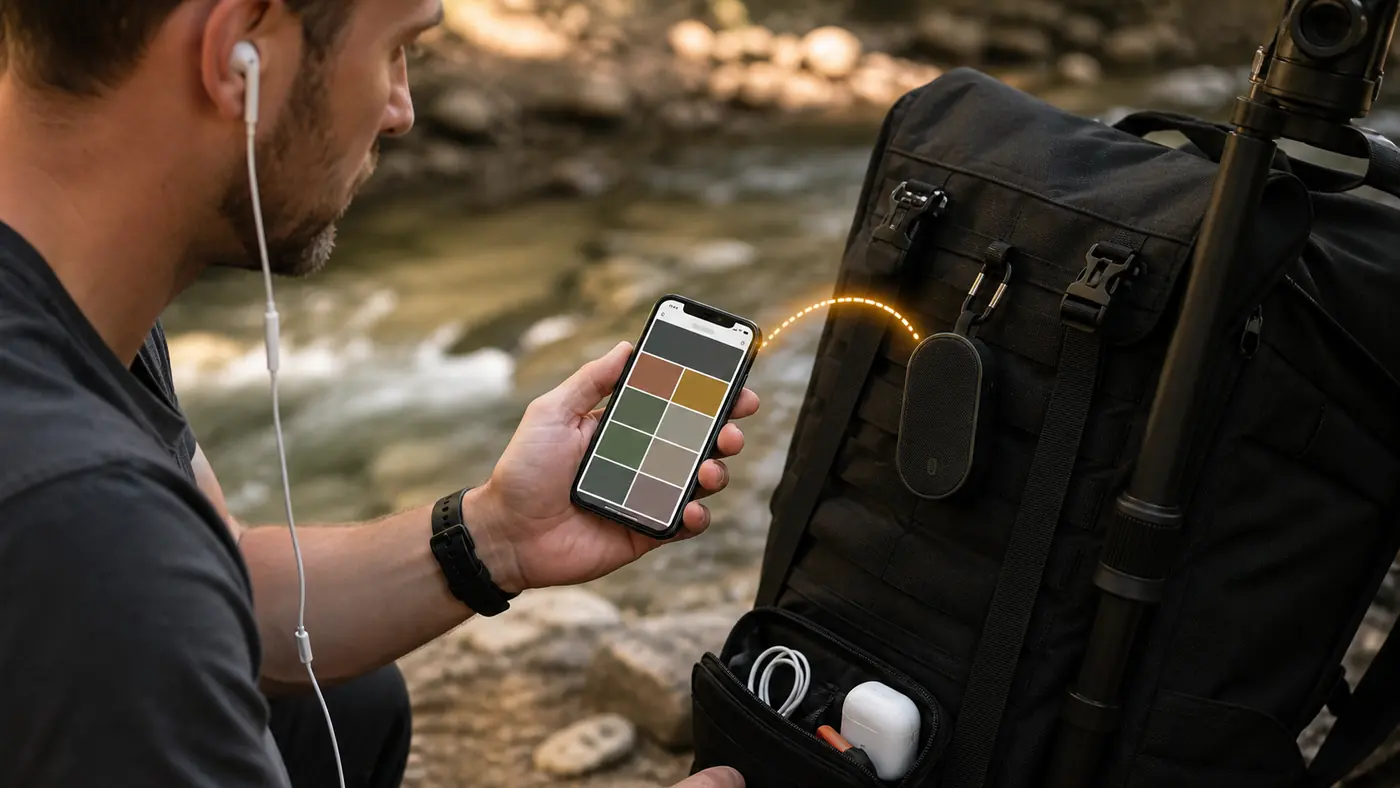
StreamBuddy opens your personal alert browser source on the smartphone. The sound comes out of a Bluetooth speaker on your backpack.
Setting up StreamBuddy step by step
- Connect the portable speaker to the Android phone over Bluetooth and start with the media volume low.
- In the dashboard of Sound Alerts, Blerp, or whichever alert service you use, copy the personal browser source or overlay URL.
- In StreamBuddy, open the main menu, choose Tabs, and tap Add tab at the bottom.
- Choose Website as the type, give it a clear name like Alerts, and paste the personal URL.
- Open the new tab and trigger a test in the alert dashboard. You should now hear the sound through the paired speaker.
- Before you go live, test the volume, the mobile data connection, and how it behaves after a short connection drop. If needed, you can enable reloading after an interruption for the website tab.
Official help: Set up alerts in StreamBuddy and Add a website tab.
A note on IRL Link: IRL Link also offered mobile IRL, OBS, and overlay features. According to the project page, though, the old app is currently no longer available on Google Play or the App Store; a new app has been announced. That's why this guide uses StreamBuddy as the preferred solution that is currently documented.
8. Getting audio right in OBS
| OBS setting | You hear the alert | Stream hears the alert |
|---|---|---|
| Monitor Off | No | Yes |
| Monitor Only (mute output) | Yes | No |
| Monitor and Output | Yes | Yes |
You'll find the setting in OBS under Advanced Audio Properties. If you want to hear alerts yourself and send them to the stream too, Monitor and Output is normally the right choice.
| Setup | Alert in the mic? | Alert source in OBS | Result |
|---|---|---|---|
| Bluetooth speaker on the backpack | Yes, the mobile mic picks up the speaker | Muted in the audio mixer | Viewers hear the sound once, through the IRL signal |
| Headphones | Normally no | Leave active | Viewers hear the sound once, through OBS |
Special case, IRL Bluetooth speaker: If the mobile mic picks up the speaker, mute the alert source directly in the OBS audio mixer. The "Monitor and Output" setting would be wrong in this setup, because it plays the sound again that is already in the IRL signal.
Under Settings → Audio → Advanced → Monitoring Device, choose your headphones or whichever device you want to listen on. Also check whether the alert source has been muted in the audio mixer.
9. Using alerts across multiple OBS scenes
Don't create a new alert browser source with the same URL for every scene. Copy the existing source and paste it into other scenes with Paste (Reference).
That way all scenes use the same source. It prevents parallel playback, echo, and unnecessary browser processes. Alternatively, you can build one central nested alert scene and include it in your LIVE, LOW, and BRB scenes.
10. Testing properly and finding errors
- Open OBS and make sure the alert source is visible and not muted.
- Use the test function in the service's dashboard.
- Watch the OBS level meter: if it moves, the problem is usually monitoring or the output track.
- Make a short local OBS test recording and check picture and sound afterward.
- If needed, reload the source from its properties or refresh the cache.
- If there's still no output, copy the browser source from the dashboard again and recreate it.
| Problem | Likely cause | Fix |
|---|---|---|
| Picture but no sound | Source muted or wrong output track | Check the audio mixer and Advanced Audio Properties |
| Stream hears sound, you don't | Monitoring is off | Choose a monitoring device and try "Monitor and Output" |
| Double audio or echo | Duplicate source or extra desktop audio | Use references only and mute the browser dashboard |
| Alert sits behind the video | Wrong source order | Move the alert source higher up in OBS |
11. Security, privacy, and copyright
- Treat personal browser source URLs like login credentials, and regenerate them in the service's dashboard if you suspect a leak.
- Only use sounds, music, and videos you have sufficient permission to use.
- A "DMCA Safe" label or a separate VOD track does not replace your own rights check.
- For platform connections and browser sources, the privacy terms of StreamerHub, Sound Alerts, or Blerp apply as well.
- Set moderation, volume, and cost limits so viewers can't abuse alerts to disrupt the stream.
12. Common questions about sound alerts in an IRL stream
Why do I hear alerts twice or with an echo?
Usually the same source is running twice. Or desktop audio is on as well, or the alert dashboard is playing sound in a regular browser. In other scenes, use "Paste (Reference)" instead of new sources with the same URL. Mute the browser dashboard. And make a private test recording: every sound should play only once.
Should the alert source in OBS be muted?
It depends on how you listen. If the alert plays through a Bluetooth speaker and your phone mic picks it up, the source stays muted in the OBS audio mixer. If you listen with headphones, leave the source on, or viewers won't hear anything. Both are in the table in section 8.
Do I need StreamBuddy for mobile output?
Not with StreamerHub. You can request the in-house StreamerHub app instead. For Sound Alerts, Blerp, and other services with a personal browser source, this guide shows StreamBuddy for Android as an alternative (section 7).
How should I handle the browser source URL?
Like a password. Don't show it in screenshots, in chat, or in public guides. If you suspect misuse, regenerate it in the service's dashboard. More about alerts in general is in the alerts overview.
Can I use any sounds and videos as alerts?
Only content you have permission to use. A label like "DMCA Safe" or a separate VOD track does not replace your own rights check. Also set limits for moderation, volume, and cost so viewers can't disrupt the stream on purpose. For read-aloud messages, see TTS in a live stream.
Stream alerts setup service & consulting
We help with setting up StreamerHub, Sound Alerts, or Blerp, with OBS audio monitoring, with multiple scenes, and with tracking down double or missing alert audio.